
If your iPhone holds several versions of the same moment, finding the photos you want can take longer than taking them. AI can help, but different tools find different kinds of matches. This guide explains how to group similar shots automatically, search by description, and narrow your library by person or date so you can compare the results more easily.
What AI on Your iPhone Can Do with Photos?
Apple has been gradually adding AI-based features to iOS for years, from recognizing faces and objects in photos to improving images automatically. More recently, Apple introduced Apple Intelligence, bringing newer AI features to several parts of the system, including Siri, writing tools, notifications, image generation, and visual search. Availability varies by iPhone model, iOS version, language, and region.
The Photos app has received its share of AI features as well. Depending on the device and software version, these include:
- People and Object Recognition: Photos can recognize people, pets, objects, places, and other visual details to help organize and search the library.
- Natural-language Search: Apple Intelligence allows more conversational searches, so a photo can be found by describing what is in it rather than entering a simple keyword.
- Clean Up: Removes unwanted objects or distractions from a photo and fills in the affected area.
- Extend: Expands an image beyond its original frame by generating additional visual content.
- Spatial Reframing: Changes the framing and apparent viewpoint of a photo after it has been taken on supported devices.
- Enhance: Automatically adjusts elements such as light and color to improve the appearance of a photo.
However, AI-based recognition of similar photos is still more limited than this feature list might suggest. The Photos app can help find pictures that share a person, subject, location, or date, but it does not generally present groups of visually similar shots for direct comparison. There are several ways around this limitation, including AI-powered photo cleaners and built-in search features that can help narrow the library before similar shots are compared manually.
4 Ways to Find Related Photos on Your iPhone
Start with automatic grouping if you want to review repeated shots across your library. If you remember who, what, or when you photographed, the other methods can help you find that particular set.
1. Group Similar Shots with an AI Photo Cleaner
Many iPhone apps now use AI to make their features faster, smarter, or more automated. Apps to delete duplicate iPhone photos are no exception. A good example is Clever Cleaner, which uses AI to identify and group similar shots so you can compare them and choose what to remove. The app can also be used for free with renewable daily limits. Here’s how to find duplicate photos on your iPhone and review similar shots with the app.
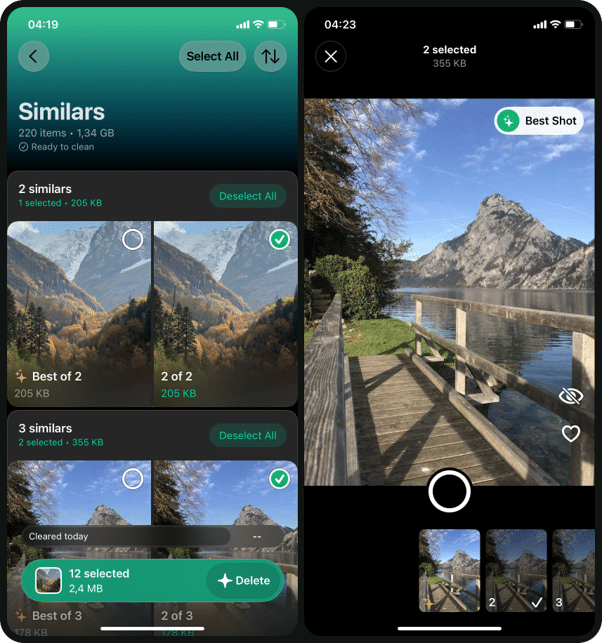
Install the app from the App Store, open it, and allow access to the photos you want analyzed. Full access is needed to check the entire library. Let the analysis finish, then open Similars to view the groups. The overview shows selected photos and their total size, helping you see what is marked for removal.
Open a group and compare its images. Best Shot is a suggestion, so look at the faces, focus, and framing before deciding. Clear the selection for anything you want to keep, then return to the overview and check the total selected count before tapping Delete. Other groups may also contain selected images. Confirm the iOS deletion prompt only after reviewing your choices.
An AI-powered duplicate photo cleaner for iPhone is the most convenient option for finding and managing similar photos. If you prefer to rely only on Apple’s native tools, the process looks and works differently. It requires more manual searching and comparison, but finding similar photos without a third-party app is still possible.
2. Search Photos by Subject or Description
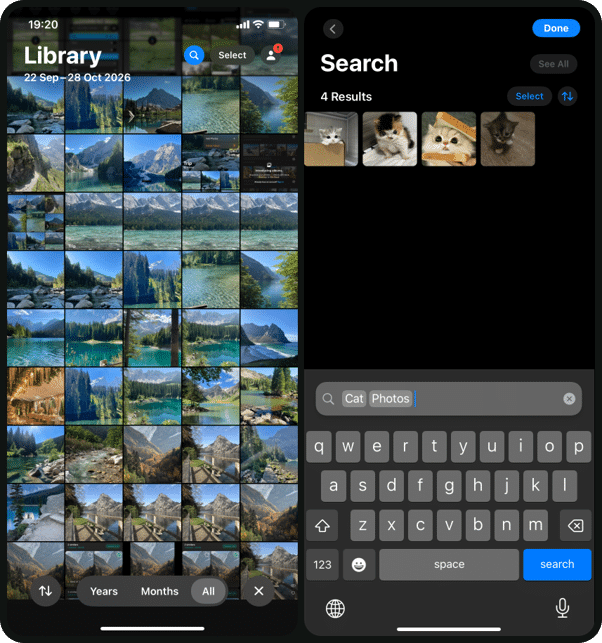
AI-powered search in Apple Photos helps when you remember what a picture contains but not where it is in your library. Open Photos, tap Search, and enter a subject, place, or event, such as “cat” or “birthday.” Choose a relevant suggestion or view the matching results.
With Apple Intelligence enabled on a compatible iPhone, you can describe a scene more specifically. For example, try “dog running on the beach” rather than just “dog.” Apple’s photo search instructions explain the supported search categories and how to view results. If a detailed description produces poor matches, simplify it to the main subject or try a known location.
Searching your iPhone photos with AI can uncover several pictures from the same outing, making them easier to compare. However, a shared subject does not guarantee a similar composition. Your results may include photos from different days, and you still choose which frames belong together.
3. Find Familiar Faces in People & Pets
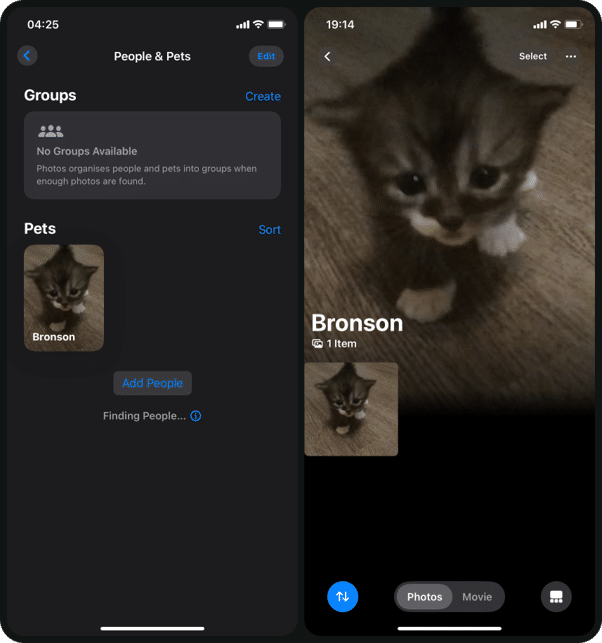
When the subject is a person, dog, or cat you photograph regularly, People & Pets gives you another starting point. Photos recognizes recurring faces and collects their pictures. This can help you find a series of family portraits or several attempts to photograph your pet without remembering the exact date.
Open Photos, go to Collections, and select People & Pets. Open the person or pet you want to review, then browse the pictures for the relevant occasion. Add a name if one is missing so the subject is easier to identify later. If you do not see the right face, use Add People to check additional suggestions.
Look for pictures taken close together during the event you remember. This collection groups by identity, not visual similarity: the same person may appear in portraits, group photos, and distant shots. Check recognition mistakes rather than assuming every image belongs to the correct subject. You can use this method without treating every photo of the same face as a duplicate.
4. Build a Date-Based Search with Shortcuts
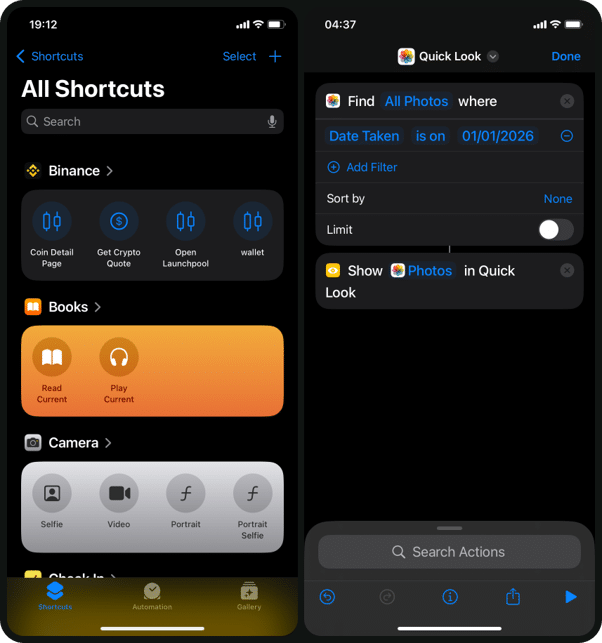
Shortcuts is useful when you know when you took a series and want a repeatable way to retrieve it. On supported versions, Apple Intelligence can create a shortcut from a description. Here, AI helps build the workflow; the resulting date filter does not compare the visual contents of your photos.
On a compatible iPhone with the description-based creation feature available, open Shortcuts and tap the plus button. Try a request such as: “Find photos taken on January 1, 2026, and show them for review. Do not delete or change anything.” Replace the date with the day you actually want to examine.
Inspect the generated actions before running the shortcut. Check that it searches photos by capture date, covers the intended day, and displays the results without modifying them. Test it against a date for which you know you have pictures. If the result is wrong, describe the correction or edit the actions directly. Generated workflows need checking just as generated text does.
This is most useful for repeated searches or a clearly remembered session. For a one-off lookup, entering a date directly in Photos may be quicker. If your version does not offer shortcut creation by description, use that simpler option rather than expecting the feature to appear on every iPhone.
Review the Matches Before Cleaning Up
Each method produces a different starting set, so compare the actual pictures before deleting anything. Keep alternate expressions or angles when they matter to you. If iCloud Photos is enabled, deletions sync across devices using the same account. Deleted items normally remain in Recently Deleted for 30 days; permanently clearing that collection removes your opportunity to restore them through Photos.
If storage is your goal, compare the available space in Settings > General > iPhone Storage before and after cleanup. These interesting iPhone cleaning results illustrate how reviewing unwanted media and other stored content can affect the overall result. Your own library may contain more space-consuming videos than repeated photos, so let the storage breakdown guide what you review next.
Choose the Search That Fits Your Photos
Use automatic grouping for near-identical shots, search for a remembered scene, or narrow your library by face or date. You do not need every method for every cleanup. Choose a useful starting point, then keep the photos that matter to you.
Finding related photos on an iPhone is easier when you choose the right method for the job. Use automatic grouping, search, People & Pets, or date filters, then review every match carefully before deleting anything from your library for good.






Leave A Comment